 PowerupStack
How to change a Minecraft server MOTD
A Minecraft server MOTD (Message of the Day) is the description shown beneath a server's name in the multiplayer server list. It lets you advertise your server's theme, welcome new players, or share an announcement before anyone connects.
On PowerupStack, the quickest way to change a Java Edition server MOTD is to open Options, find MOTD on the
General tab, enter your message, and restart the server. You can also edit the motd= property manually.
Minecraft Java vs. Bedrock MOTD support
Java Edition offers considerably more control over how a server appears in the multiplayer list.
| Server-list feature | Java Edition | Bedrock Edition |
|---|---|---|
| Custom MOTD | Supported | Not supported |
| Colors, styles, and two-line MOTDs | Supported | Not supported |
| Owner-supplied server icon | Supported | Not supported on regular dedicated servers |
| Configuration | motd= | server-name= sets the server name only |
Featured or partnered Bedrock servers may display platform-managed branding or icons. These are part of the featured server experience and are not custom icons that an ordinary Bedrock server owner can upload.
Change the MOTD in the PowerupStack panel
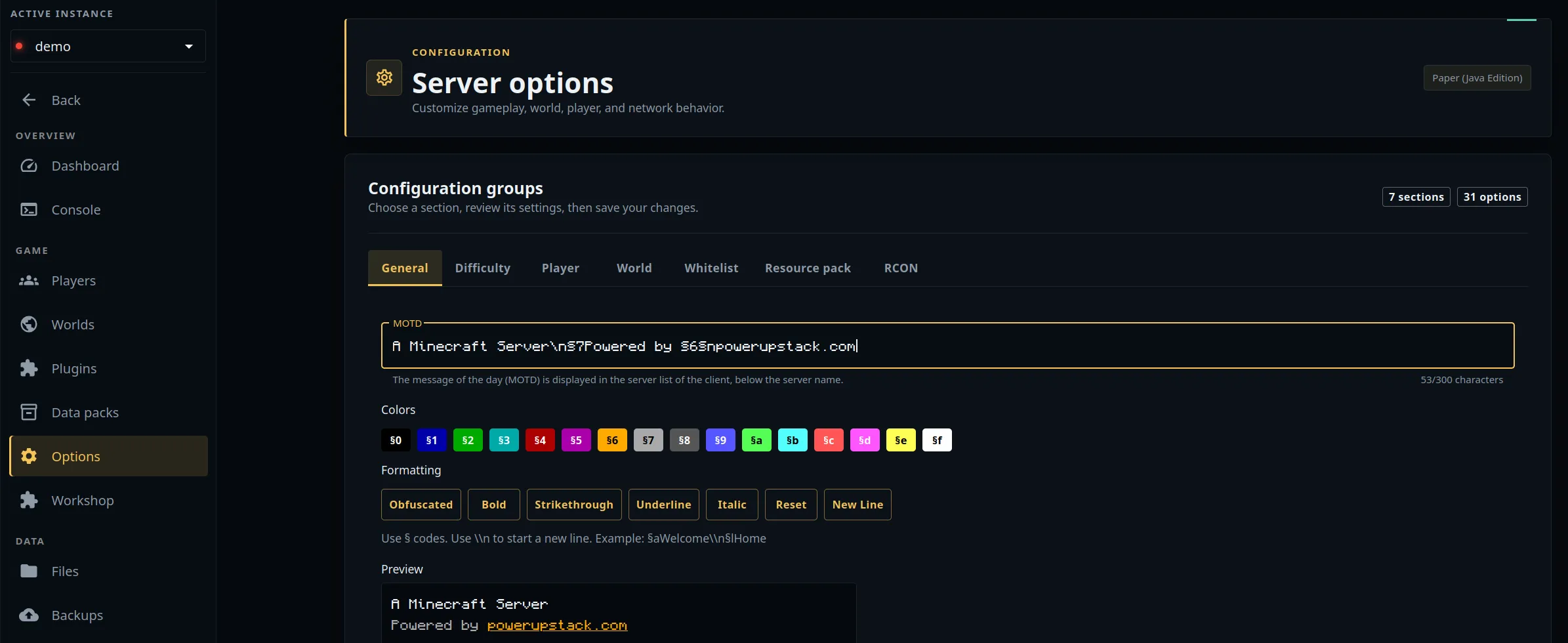
PowerupStack includes a visual Java Edition MOTD editor with formatting controls and a live preview:
- Open your Minecraft instance in the PowerupStack panel.
- Select Options from the instance menu.
- On the General tab, find the MOTD option.
- Enter your message and apply any colors or text styles.
- Check the preview to confirm how the MOTD will appear in Minecraft.
- Save the options, then restart the server.
- Refresh the Minecraft multiplayer server list to view the new MOTD.
Change the MOTD in server.properties
On a Minecraft Java Edition server, you can also edit the MOTD manually:
- Stop the Minecraft server.
- Open
server.propertiesin the server's root directory. - Find the line that begins with
motd=. - Replace the existing text with your new server description.
- Save the file and start the server again.
For example:
motd=Welcome to my Minecraft server!
Bedrock Dedicated Server has a server-name property, but this sets its name rather than creating a customizable,
formatted Java-style MOTD.
Add colors, formatting, and line breaks
Java Edition MOTDs support color codes, text styles, and up to two lines. Use the section sign (§) followed by a
formatting code, such as §6 for gold or §b for
aqua. Use §r to reset the color and style.
Insert \n where the second line should begin:
motd=My §6awesome §rMinecraft server\nPowered by §bpowerupstack.com
The formatted result looks like this:

Minecraft MOTD color and formatting codes
Use the reference below to find every supported Minecraft MOTD color and formatting code.
| Color | Name | Chat code | ANSI escape code |
|---|---|---|---|
| Black | §0 | \u00A70 | |
| Dark blue | §1 | \u00A71 | |
| Dark green | §2 | \u00A72 | |
| Dark aqua | §3 | \u00A73 | |
| Dark red | §4 | \u00A74 | |
| Dark purple | §5 | \u00A75 | |
| Gold | §6 | \u00A76 | |
| Gray | §7 | \u00A77 | |
| Dark gray | §8 | \u00A78 | |
| Blue | §9 | \u00A79 | |
| Green | §a | \u00A7a | |
| Aqua | §b | \u00A7b | |
| Red | §c | \u00A7c | |
| Light purple | §d | \u00A7d | |
| Yellow | §e | \u00A7e | |
| White | §f | \u00A7f | |
| Obfuscated | §k | \u00A7k | |
| Bold | §i | \u00A7l | |
| §m | \u00A7m | ||
| Underline | §n | \u00A7n | |
| Italic | §o | \u00A7o | |
| Reset | §r | \u00A7r |
Minecraft server MOTD examples
These examples can be pasted into the PowerupStack editor or used as the value of motd=.
Survival SMP
motd=§6Oakvale SMP §7| §aSurvival\n§fFriendly community - Join today!
Server event
motd=§dBuild Contest this Saturday!\n§eTheme: Floating Islands
Maintenance notice
motd=§cMaintenance in progress\n§7Back online soon
New-player welcome
motd=§bNew players welcome!\n§fNo resets - Fresh adventures
Tips for writing a good Minecraft MOTD
- Put the server name, game mode, or most important status on the first line.
- Use the second line for an event, feature, or invitation to join.
- Choose a small number of high-contrast colors so the text remains easy to read.
- Use
§rwhen later text should return to the default style. - Check the visual preview instead of relying on a character count; letters and formatting can occupy different widths.
- Update time-sensitive announcements when an event or maintenance window ends.
The MOTD is only one part of a Java server's multiplayer-list appearance. The player count, version text, and server icon are separate from the MOTD.
Set an offline MOTD in PowerupStack
PowerupStack can display a separate offline MOTD while a Java Edition instance is stopped. This works with PowerupStack's auto-start-on-join feature and lets players see a useful status while the server starts.
To change the offline MOTD:
- Open your Minecraft instance in the PowerupStack panel.
- Select Settings from the instance menu.
- Open the Offline MOTD tab.
- Enter and format your offline message.
- Check the preview, then save your changes.
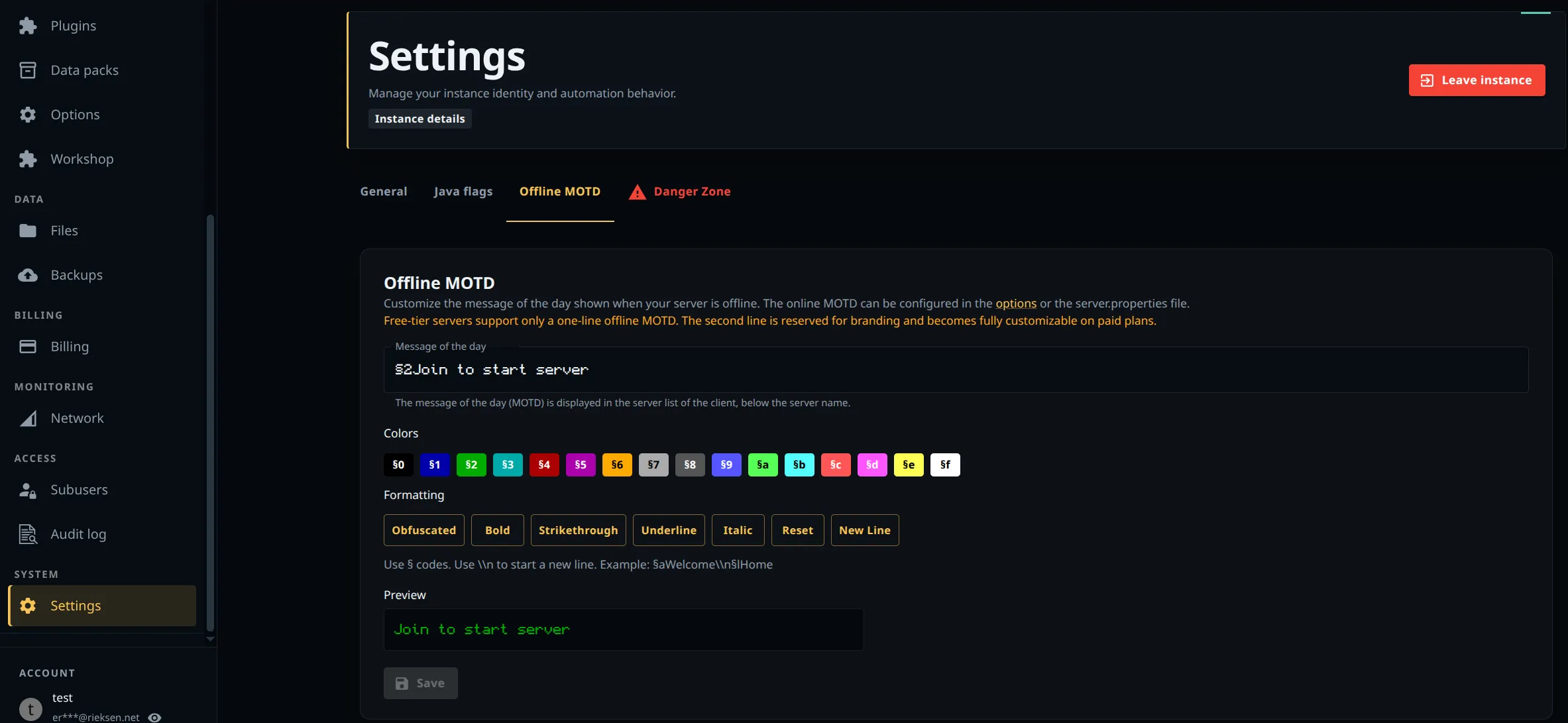
On free-tier servers, PowerupStack branding occupies the second line of the offline MOTD and cannot be removed. A paid plan lets you remove this offline branding. This restriction does not apply to the regular server MOTD: although PowerupStack provides a branded default MOTD, you can replace it on any tier.
Create a dynamic MOTD with plugins or a proxy
The MOTD in server.properties is static. A compatible Java Edition plugin can rotate messages or change the MOTD for
events, schedules, player counts, or network status. Plugins require server software that supports them, such as Paper
or Spigot.
On PowerupStack, install approved plugins through the Workshop. Paid servers can also upload plugin JAR files using the file manager. See how to install Minecraft plugins for the complete workflow.
A proxy can also control the MOTD shown for an entire server network. For example, Velocity defines its own motd
setting in velocity.toml and can optionally pass a backend server's description through. If players connect through a
proxy, changing only the backend server's server.properties may not change the MOTD they see. Check the
Velocity configuration documentation when using this setup.
Why is my Minecraft MOTD not updating?
Work through these checks if Minecraft continues to display the old message:
- Save and restart: Confirm that you saved the PowerupStack option or
server.properties, then restart the server. - Refresh the server list: Refresh the multiplayer list or leave and reopen the multiplayer screen.
- Check the correct file: Make sure you edited
server.propertiesfor the active instance, not a backup or a different server. - Check plugins: A server-list or MOTD plugin may override the value in
server.properties. - Check the proxy: If players connect through Velocity or another proxy, its MOTD or ping-passthrough setting may take precedence.
- Shorten the message: If a line is cut off, reduce its length and check it in the PowerupStack preview.
- Confirm the edition: Java-style MOTDs and custom server icons are not available on ordinary Bedrock dedicated servers.