 PowerupStack
To reset a forgotten PowerupStack password, request a recovery link from the password recovery page and use it to choose a new password. You need access to the email address associated with your account.
If you are already logged in and know your current password, follow the guide to change your password in Settings.
Reset your password
Open the PowerupStack login page and click Forgot your password?.
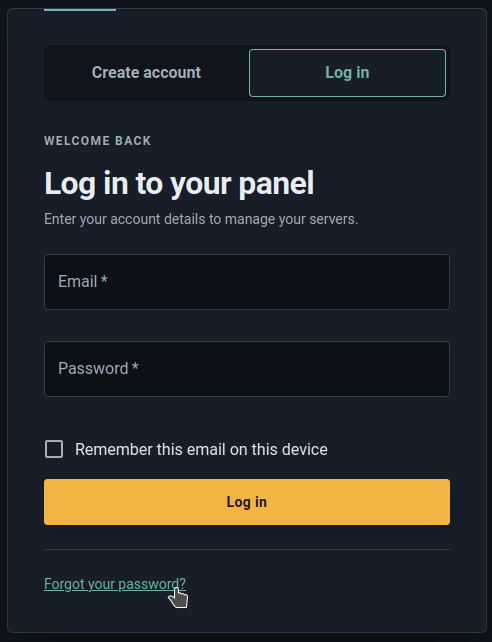
- Enter the email address associated with your account in Email, then click Send recovery link.
- Check that email address's inbox for the password recovery email and open the link in it. The link expires after one hour and can only be used once.
- Enter your chosen password in New password, then enter it again in Confirm password.
- Click Set new password.
- After the reset succeeds, you will be redirected to the login page. Log in with your new password.

Resetting your password signs you out of all active sessions. You will need to log in again on your other devices too.
New password requirements
Choose a password with 12–72 characters and at least eight distinct characters. It must differ from your current password, and both password fields must match.
Troubleshooting
The recovery email has not arrived
- Check your spam or junk folder and any email filters that might hide the message.
- Confirm that you entered the email address associated with your PowerupStack account. The request confirmation does not confirm that an account exists for that address.
- Check that noreply@powerupstack.com is not blocked by your email provider.
- If you need another email, wait at least 30 minutes after your last request before requesting a new recovery link.
A recovery email was recently requested
There is a 30-minute wait between recovery requests. Check your inbox for the existing email, or try again once 30 minutes have passed since the last request.
The recovery link is expired, used, or invalid
Request a new recovery link from the login page. If the reset page offers Request a new recovery link, you can use that button.
Use the link in the newest recovery email: requesting a replacement invalidates earlier unused links. Each link expires after one hour and can only be used once. The 30-minute request wait still applies.
The new password is rejected
Check the requirements above and the error shown next to New password. If the confirmation does not match, re-enter the same new password in both fields.
You cannot access your account's email address
The password recovery link is sent to the email address associated with your account. You need to regain access to that mailbox to use this recovery process.