 PowerupStack
To reset an entire Minecraft world, stop the server, open Options → World, and change World name to an unused name. Save the options and start the server to generate a new save while preserving the old one. To regenerate only the Nether or End, delete that dimension from the Worlds page instead.
Before resetting a world
- Stop the Minecraft server and wait until its status is Stopped.
- Download all instance files or create another external backup.
- Decide whether to reset the complete world, only the Nether, or only the End.
Reset the entire world
- With the server stopped and backed up, open Options and select the World tab.
- Find World name and record its current value so you can identify the old save later.
Change World name to an unused name, for example
world_new. Confirm that no existing save or associated dimension folder already uses that name.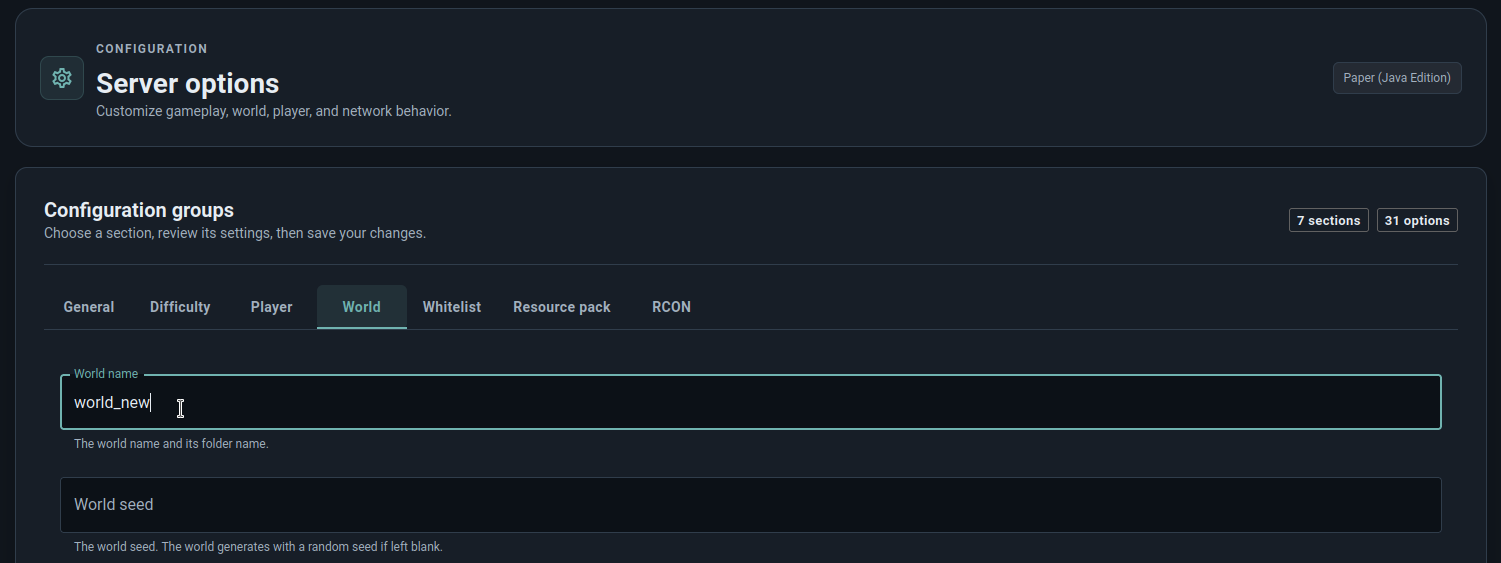
- Set World seed to your desired seed, or leave it empty for a random seed. See how to customize the world seed for examples.
- If you want a superflat replacement, configure the flat world type now.
- Click Save, then start the server.
- Join and confirm that the new world loads as expected before removing any old files. If you have operator access,
use
/seedto check its seed.

Changing World seed alone does not replace an existing save. Using an unused World name ensures Minecraft creates a new save with the selected seed instead of loading the old world's metadata.
Alternative: edit server.properties
The World name option updates level-name in server.properties. You can also change this value directly:
- With the server stopped and backed up, open Files, then
server.propertiesin the instance root directory. Record the current
level-nameand change it to an unused name, for example:level-name=world_newIf you want a particular seed, set
level-seedbefore starting, or leave it empty for a random seed.Save the file and start the server. Verify the new world as described above before removing any old files.
Optionally remove the old save
Keep the old save if you want to return to it later. To switch back, stop the server, restore the previous World name under Options → World, click Save, and start again.
If you no longer want the old save:
- Confirm the new world works and that you have an external backup of anything you want to keep.
- Stop the server and wait until its status is Stopped.
- Open Files and locate the complete old save folder using the World name you recorded. For example, if you
changed
worldtoworld_new, the old folder isworld/. On older Paper or Spigot layouts, also identify any associated dimension folders, commonly
world_nether/andworld_the_end/for an old world namedworld.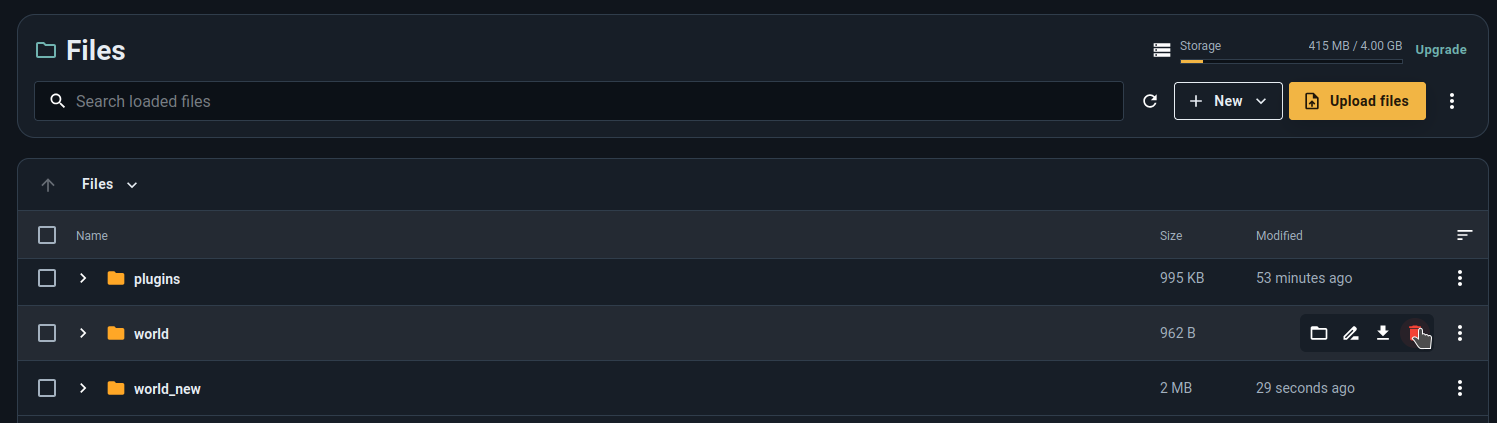
- Delete only the old save folder and its associated dimension folders. Keep the new active save and all folders associated with it.
- Start the server again.

Delete the complete old save folder through Files when cleaning up. In newer layouts, deleting individual rows on
the Worlds page can leave the old save's level.dat and other shared files behind.
Identify the correct world or dimension
Open your instance and select Worlds. Use the Path column rather than the name alone:
| What to reset | Common path markers |
|---|---|
| Overworld | The base world folder, overworld, or dimensions/minecraft/overworld |
| Nether | DIM-1 or the_nether |
| End | DIM1 or the_end |
Paths vary between Vanilla, Paper, other Java server software, and newer world formats. If multiple worlds are installed, confirm that the path belongs to the active World name under Options → World.
Reset only the End or Nether
- Stop the server completely.
- Open Worlds in the instance dashboard.
- Find the row whose path contains
DIM1orthe_endfor the End, orDIM-1orthe_netherfor the Nether. Open the row's menu.
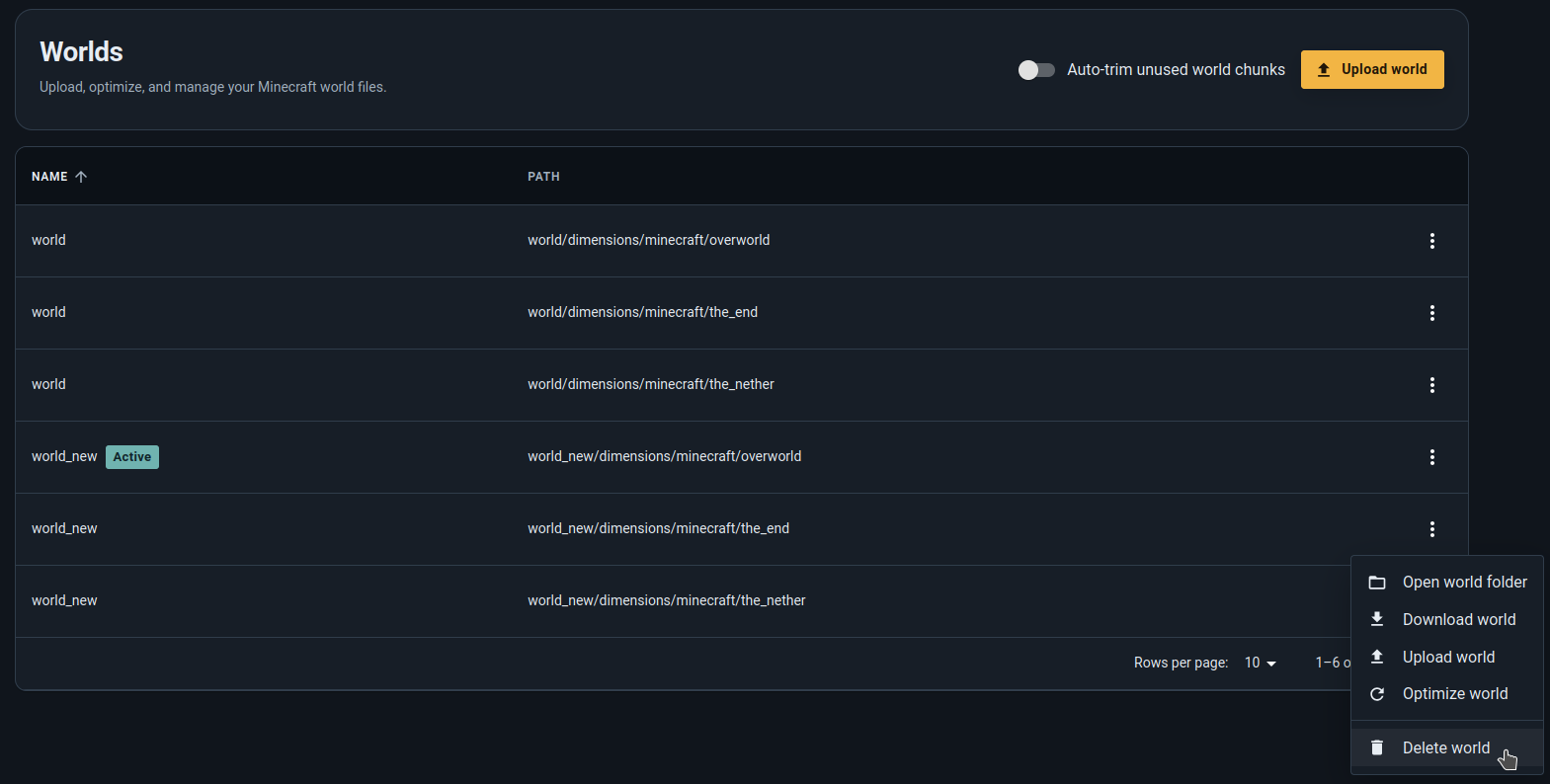
- Select Delete world and confirm the permanent deletion.
- Start the server and enter that dimension. Minecraft generates it again from the world's seed.

Deleting one dimension does not reset player builds or terrain in the other dimensions.
End terrain and dragon-fight state
On Java 26.1 and newer, dragon-fight data is stored inside the End dimension, so deleting that dimension also removes its saved fight state.
On pre-26.1 Vanilla servers, the fight state is stored in the parent world's level.dat. Deleting DIM1 regenerates
the End terrain but retains that fight state; it does not guarantee that the dragon will respawn. Do not delete the
parent world's level.dat for a dimension-only reset, because it also contains settings for the rest of the world.
Troubleshooting
The Delete world button is disabled
The instance must be fully stopped, and your account needs the permission to delete worlds. Wait until the status is Stopped, refresh the page, and try again. If the instance belongs to someone else, ask its owner to update your permissions or perform the reset.
The old End or Nether returned
Check the Path column. You may have deleted a dimension belonging to a different world, or left another dimension folder associated with the active world. Stop the server again and compare the paths with World name under Options → World.
The replacement world has the old terrain or seed
For a complete reset, stop the server and open Options → World. Check that World name was saved with an unused name. If that name already had a save folder, Minecraft loaded its existing metadata. Choose another unused name, set World seed if needed, and click Save before starting again.
For a dimension-only reset, verify that you deleted the intended dimension from the active world. It regenerates from that world's existing seed, so unchanged generation settings can produce the same terrain again.